

Many ecommerce brands think they need expensive tools to optimize their Google Shopping feed.
That’s not true.
You can do Google Shopping feed optimisations manually, without any paid tools and still get strong results.
Your shopping feed is the engine behind Shopping Ads.
If the feed is broken or poorly optimized, Shopping Ads will never perform well.
In this blog, I’ll show you how to manually optimize your Google Shopping feed using Google Sheets, step by step.
Why Google Shopping Feed Optimisations Matters?
Google Shopping Ads don’t work like Search Ads.
They don’t rely only on keywords.
They rely heavily on your product feed data.
If your feed has:
- Weak titles
- Poor descriptions
- Missing attributes
- Wrong product types
Then Google doesn’t understand your products properly—and performance suffers.
That’s why fixing the feed comes before scaling ads.
Do You Really Need Paid Tools?
No.
Paid tools can help, but they are not required, especially if:
- You are just starting
- You want full control over your data
- You want to understand how your feed actually works
You can do manual Google Shopping feed optimisations using:
- Google Merchant Center
- Google Sheets
That’s it.
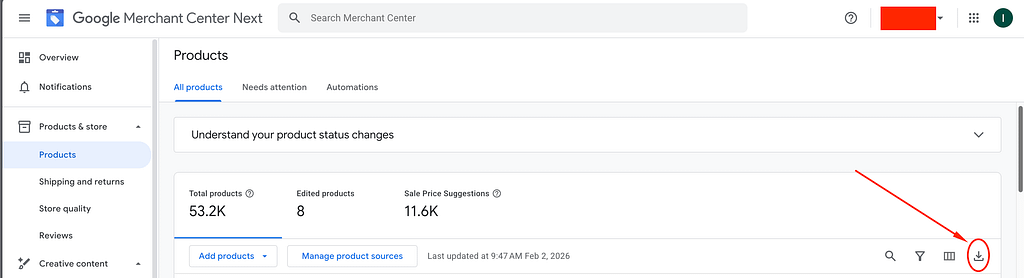
Step 1: Download Product Data From Google Merchant Center
First, go to Google Merchant Center.
- Open Products
- Download the product data file
This file contains all your product attributes like:
- Title
- Description
- Price
- GTIN
- Product type
- Category
- Images
Step 2: Import the Feed Into Google Sheets
Now open Google Sheets.
- Create a new sheet
- Import the downloaded product feed
- Make sure all columns are visible
This sheet will be your manual feed optimization workspace.
Step 3: Clean Unnecessary Columns
Most feeds contain many columns that:
- Are not used
- Create confusion
- Add no value to Shopping Ads
Delete or hide columns you don’t need.
Focus only on what actually helps performance.
Examples of important columns:
- id
- title
- description
- product_type
- google_product_category
- brand
- gtin
Step 4: Optimize What Actually Matters
This is the core of Google Shopping feed optimisations manually.
Product Titles
Your product title is the most important attribute.
Optimize titles using:
- Product name
- Main keyword
- Important attributes like size, color, material
- Use clear and simple wording
Example:
Bad title:
“Classic Shirt”
Better title:
“Men Cotton White Formal Shirt Slim Fit”
Product Descriptions
Descriptions help Google understand context.
Include:
- Main product features
- Use cases
- Secondary keywords
- Clear and simple language
Avoid keyword stuffing.
Product Types
Use custom product types based on your store structure.
Example:
- Mobile Cases > iPhone cases > iPhone 17 Cases
This helps:
- Campaign segmentation
- Keyword stuffing
Images
Images sell the click.
Make sure:
- Main image is clear
- White or clean background
- No text overlays
- Add lifestyle images if possible
Step 5: Upload as a Supplementary Feed
Now comes the powerful part.
Instead of replacing your main feed, use a Supplementary Feed.
How to Add a Supplementary Feed
- Go to Merchant Center
- Open Data Sources
- Click Supplementary Feeds
- Add new feed
- Choose Google Sheets
- Fetch the data
This allows you to:
- Override titles
- Improve descriptions
- Add product types
- Fix missing attributes
Without touching your main feed.
Step 6: Fetch and Validate the Feed
Once uploaded:
- Fetch the supplementary feed
- Check for errors or warnings
- Make sure attributes are mapping correctly
If done right, your optimized data will now reflect inside Merchant Center.
Updates won’t take longer, you can verify after a while.
Fix the Feed First. Then Run Shopping Ads.
Many advertisers try to fix performance by:
- Changing bids
- Increasing budget
- Launching more campaigns
But the real problem is often the Google Shopping feed.
Fix the feed first.
Let Google understand your products clearly.
Then Shopping Ads can do their job properly.