
If your Google ad is not showing, the problem may be an inactive campaign, failed payment, disapproved ad, low budget, restrictive bids, or incorrect targeting. Start by checking impressions in Google Ads for the correct date range. If impressions are zero, review account and campaign statuses before adjusting keywords or bids. If impressions are appearing but you cannot find your own ad, use Google’s Ad Preview and Diagnosis tool instead of repeatedly searching Google. An eligible ad does not appear in every auction. Below are 12 common reasons Google Search ads fail to show and how to fix each one.
First, Check Whether Your Google Ads Are Actually Running
Not finding your advertisement on Google doesn’t necessarily mean your campaign has stopped.
Google runs an auction when someone searches. Your ad may qualify for some searches but not others.
Before changing settings, open your Google Ads account and check the Impressions column.
Make sure the date range includes days when your campaign was supposed to be active.
What Do Your Google Ads Metrics Tell You?
| What You See | What It Means | Where to Start |
| Zero impressions | No recorded ad appearances in the selected period | Account status, campaign eligibility, keywords |
| A few impressions | Ads are serving but reach may be restricted | Budget, bids, targeting, search volume |
| Impressions but no clicks | Ads appear, but users aren’t clicking | Search relevance, ad messaging, position |
| Clicks but no enquiries | Ads are bringing visitors, but leads aren’t coming through | Landing page and conversion tracking |
This distinction matters.
For example, a plumbing company with zero impressions should investigate campaign delivery.
A roofing company receiving 300 impressions and 20 clicks has a different problem if nobody contacts the business.
Fix the stage where performance is failing rather than changing the entire campaign.
How to Use Google Ads Preview and Diagnosis
Google provides a tool that helps identify why an ad may not appear for a particular search.
Here’s how to use it:
- Open your Google Ads account.
- Select Tools → Troubleshooting → Ad preview and diagnosis.
- Enter a relevant search term.
- Select the location, language and device you want to test.
- Review the simulated results and diagnostic explanation.
Suppose your cleaning company targets homeowners in Manchester.
You want to check the search “house cleaning Manchester.”
Set the preview location to Manchester rather than searching from your own location elsewhere.
The tool may identify an inactive ad group, keyword issue or another reason your ad isn’t appearing.
However, it only represents a particular simulated search. Use actual impression data alongside the diagnosis.
Avoid repeatedly searching for your own ads on Google. Those searches can affect impression statistics and may stop you from seeing ads Google believes you’re unlikely to click.
12 Reasons Your Google Ad Is Not Showing – And How to Fix Them
Work through these issues in order. Start with account-level problems, then check campaign settings and the ad auction.
1. Your Google Ads Payment Has Failed
A billing problem can prevent advertisements from running.
For example, your payment card may have expired, a transaction may have been declined, or your prepaid balance may have run out.
How to check:
Open Billing → Summary and review payment notifications, outstanding balances and account payment status.
How to fix:
Update the payment method or resolve the outstanding charge.
If your business uses manual payments, check whether additional funds are required.
Don’t increase bids or rewrite ads before resolving the payment issue. Those changes cannot override an account-level billing hold.

2. Your Account Has a Verification Hold or Suspension
Google may restrict advertising while an account undergoes verification or a security review.
An account suspension can also prevent ads from serving.
These are different issues and require different actions.
How to check:
Review account notifications, verification requests and policy notices.
Look for a specific explanation rather than assuming that every restriction is a suspension.
How to fix:
Complete outstanding advertiser verification when requested.
If the account is suspended, review the stated policy issue and follow Google’s appeal process after making any necessary corrections.
Do not create another account simply to bypass a suspension.
3. Your Campaign, Ad Group or Keyword Is Inactive
A campaign can appear correctly configured while one of its essential components is paused.
Common statuses include:
- Paused: Someone stopped the campaign, ad group or keyword.
- Pending: The campaign’s start date has not arrived.
- Ended: Its scheduled end date has passed.
- Removed: The item has been removed.
How to fix:
Open Campaigns and check the status of the campaign and its active ad groups.
Then check that eligible advertisements and keywords exist inside them.
For example, a pest control company may enable its campaign but forget that all keywords were previously paused.
Reactivating the campaign alone will not restore delivery in that situation.
Also check Change history if the campaign stopped unexpectedly.
4. Your Advertisement Is Under Review or Disapproved
Google reviews ads for compliance with its advertising policies.
A new or edited advertisement may not immediately serve while review takes place.
Some ads may serve during review, depending on the circumstances.
An ad marked Disapproved cannot serve until the policy problem is resolved.
How to check:
Open Campaigns → Ads and inspect the Status and policy details.
Common problems include misleading claims, restricted content and destination issues.
For example, a roofing advertisement may be disapproved because its landing page is inaccessible.
How to fix:
Read the specific policy explanation.
Correct the ad or landing page and submit it for review, or appeal if you believe the decision is incorrect.
Google says most Search ad reviews are completed within approximately one to two days, although some take longer.
Avoid repeatedly editing an ad solely because its review has not finished.
5. Your Daily Budget Is Limiting Ad Delivery
A low budget can reduce how frequently Google shows your advertisements.
Imagine a plumbing campaign with an average daily budget of $20.
If relevant clicks are expensive in that location, the campaign may have limited opportunities to compete throughout the day.
This does not automatically mean your budget is wrong. It means you need to compare the budget with expected click costs and business goals.
How to check:
Review the campaign’s budget status.
Look for Limited by budget and, where available, Search lost IS (budget).
How to fix:
Focus spending on your most relevant services and locations.
Remove unsuitable targeting and review expensive keywords before increasing the budget.
If performance supports additional spending, consider a controlled budget increase.
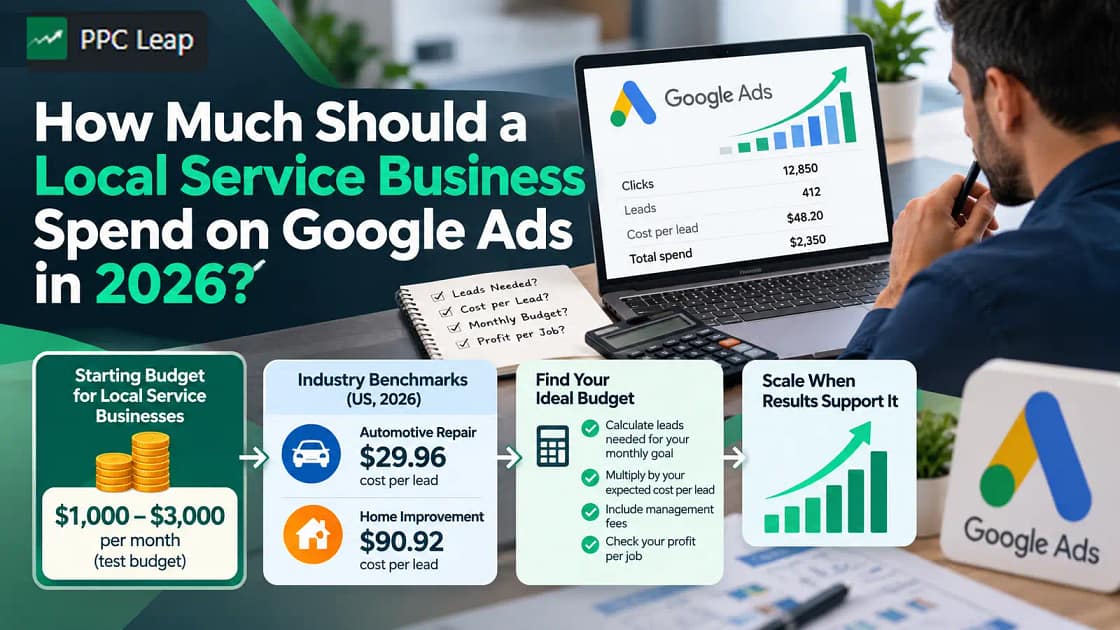
For a broader budgeting method, PPC Leap’s guide on how much a local service business should spend on Google Ads explains how to estimate advertising costs against lead and booking goals.
6. Your Bidding Strategy Is Too Restrictive
Google may struggle to enter competitive auctions when your bids or automated bidding targets are unusually restrictive.
For example, an HVAC company may set a target cost per acquisition of $10 when its relevant customer enquiries have historically cost substantially more.
The system may then struggle to find suitable opportunities at that target.
How to check:
Review your campaign’s bidding strategy and its status.
Look for limitations or configuration problems, and confirm that your conversion goals are appropriate.
How to fix:
Compare your targets with actual campaign history.
If you use Target CPA, consider whether the target is realistic.
If your conversion tracking is misconfigured, correct it before relying on automated bidding decisions.
A Learning status does not automatically mean ads have stopped. Campaigns can continue serving while Google’s bidding system adjusts.
Avoid making several large changes at once.

7. Your Ad Rank Is Too Low to Win Auctions
An approved advertisement isn’t guaranteed a position in Google Search.
Google uses Ad Rank to determine whether an ad qualifies to show and where it appears.
Ad Rank considers several factors, including bids, auction-time ad quality, competition, search context and the expected impact of ad assets.
How to check:
Review available keyword statuses and impression-share metrics.
A keyword may display Below first page bid estimate or Rarely shown due to low Quality Score.
How to fix:
Improve the connection between your keywords, advertisements and landing pages.
For example, someone searching for “commercial roof replacement” should see a relevant commercial roofing advertisement and landing page.
Sending that visitor to a generic homepage may offer a weaker experience.
Review bid competitiveness as well, but don’t assume increasing bids is the only solution.
Important: Quality Score is a diagnostic indicator. The reported 1–10 score is not itself a direct input into the auction-time Ad Rank calculation.
8. Your Keywords Have Low Search Volume
A keyword may be relevant but too specific to attract meaningful search traffic.
Consider a cleaning business targeting:
“specialist two-bedroom end-of-tenancy carpet cleaning near central Manchester”
Very few people may search that exact wording.
Google may mark such keywords as Low search volume.
How to check:
Open the Search keywords report and review the Status column.
Use Keyword Planner to explore more commonly searched variations.
How to fix:
Consider broader, natural keyword themes such as:
- End of tenancy cleaning Manchester
- Carpet cleaning Manchester
- Professional move-out cleaners
Only target services your company actually offers.
You can also test appropriate match types while monitoring irrelevant searches.
Google may automatically pause keywords that have recorded zero impressions for a prolonged period, so review inactive keyword statuses as well.
9. Your Negative Keywords Are Blocking Good Searches
Negative keywords prevent ads from appearing for selected search terms.
They are useful for excluding irrelevant searches, but overly broad negatives can accidentally block real customers.
Imagine a roofing company uses repair as an account-wide negative keyword.
That could prevent ads from showing for valuable roof repair searches.
How to check:
Review account-level negatives, campaign negatives and shared negative keyword lists.
Look for exclusions that overlap with services you advertise.
How to fix:
Remove or narrow negatives that block genuine customer intent.
Apply service-specific exclusions to the correct campaign rather than the entire account.
Be especially careful with words such as repair, commercial, cost and free, which may be valuable depending on your offer.
10. Your Location Targeting Excludes Potential Customers
Local service businesses often restrict advertising to areas they serve.
That is sensible, but incorrect targeting can eliminate relevant searches.
For example, a pest control company based in Brisbane might accidentally target only a small radius around its office while serving a much wider area.
How to check:
Open campaign settings and review included and excluded locations.
Also check whether you’re targeting people based on Presence or Presence or Interest.
Presence generally focuses on people physically located in or regularly in the selected locations.
Presence or Interest can also include people who have shown interest in those areas.
How to fix:
Choose the location settings that match your real service coverage and customer behaviour.
Expanding geographic reach may increase impressions, but it can also introduce irrelevant traffic.
For most home service companies, customers outside the genuine service area aren’t useful simply because they show interest in a city.
Only widen targeting where the additional enquiries would be suitable.
11. Your Schedule, Audience or Device Settings Are Too Narrow
A campaign may only be eligible during specific hours or for certain users.
For example, an emergency plumber might advertise only from 9 a.m. to 5 p.m., even though customers search for emergency repairs late at night.
An overly restrictive audience setting can also limit delivery.
How to check:
Review:
- Ad schedule and account time zone.
- Selected languages.
- Audience targeting versus observation.
- Device settings and bid adjustments.
- Geographic exclusions.
How to fix:
Correct settings that unintentionally restrict suitable customers.
For Search campaigns, using Observation for audiences generally allows you to collect audience information without restricting reach to only those audiences.
If your business operates during limited hours, coordinate your ad schedule with actual phone and enquiry handling.
Do not advertise 24-hour availability unless your company genuinely offers it.

12. Your Ad Is Eligible, but Another Ad Wins the Auction
Sometimes the campaign is active, approved and receiving impressions, yet one particular advertisement rarely appears in your tests.
Google may select a different eligible ad, keyword or campaign for the search.
Search campaigns can also interact with other eligible campaign types, including Performance Max and AI Max-enabled configurations.
Google’s Ad Preview and Diagnosis tool may explain when another candidate has been prioritised.
How to check:
Compare campaign-level impressions with the impressions recorded for the individual ad or keyword.
Review Ad Preview diagnostics, eligible campaign overlap and relevant Auction insights.
How to fix:
Check whether the intended campaign matches the search and whether another eligible campaign is being selected.
Improve relevance and review campaign structure before assuming one campaign is incorrectly stealing all traffic.
An eligible advertisement does not need to appear for every search to be working properly.
What Should You Do If All 12 Checks Look Correct?
If your Search campaign remains at zero impressions, use Google’s campaign diagnostics rather than changing settings randomly.
The Campaigns interface includes diagnostics that evaluate account issues, ads, targeting, bidding, budget and other potential delivery problems.
Review the findings and your account’s Change history.
If you recently launched the campaign or changed the bidding strategy, allow for review and normal system adjustments.
If the campaign still does not serve after the relevant checks, use the official Google Ads support process with your campaign details and diagnostic results.
Quick Troubleshooting Checklist
| Priority | Check | Action |
| First | Correct date range and impressions | Confirm whether ads have actually served |
| Second | Billing and account status | Resolve payment, verification or policy holds |
| Third | Campaign, ad group and ad status | Fix inactive or disapproved components |
| Fourth | Keywords and targeting | Review low volume, negatives, locations and schedules |
| Fifth | Budget, bidding and Ad Rank | Find auction and spending limitations |
| Finally | Ad Preview and campaign diagnostics | Identify remaining delivery or auction issues |
Don’t increase your advertising budget until you’ve established that budget is actually limiting delivery.
When Is It a Lead Problem Rather Than an Ad Visibility Problem?
Suppose a roofing company records:
| Metric | Example Monthly Result |
| Search impressions | 1,200 |
| Ad clicks | 65 |
| Tracked customer enquiries | 0 |
This campaign is showing ads.
Its problem is not zero impressions.
The next investigation should involve search relevance, the landing page, contact details and conversion tracking.
PPC Leap’s Google Ads Not Getting Calls checklist explains how to investigate that next stage.
Separating visibility problems from lead problems helps businesses avoid fixing the wrong part of their campaigns.

Frequently Asked Questions
1. Why Is My Google Ad Eligible but Not Showing?
Eligible means your advertisement can participate in suitable auctions, not that it appears in every search. Low budget, restrictive bidding, weak Ad Rank, limited search demand or targeting settings may prevent impressions.
2. Why Are My Google Ads Getting Zero Impressions?
Zero impressions can result from payment holds, inactive campaigns, disapproved ads, low-volume keywords or restrictive targeting. Check the selected date range and account status before investigating bidding and auction competition.
3. How Long Does It Take for Google Ads to Start Showing?
Most new Search ads undergo review for approximately one to two days, although some take longer. Once eligible, delivery still depends on campaign settings, search demand, budgets and auctions. There is no guaranteed start time.
4. Why Can’t I See My Google Ad on My Phone?
Your mobile search may not match the campaign’s targeted location, language, device settings or available budget. Use Ad Preview and Diagnosis with the appropriate device and location rather than repeatedly searching on your phone.
5. Do Google Ads Appear Every Time Someone Searches a Keyword?
No. Google evaluates each eligible search through an auction. An ad may not appear because of budgets, bidding, quality thresholds, competition or targeting. Having an active keyword does not guarantee an impression.
Get Your Google Ads Showing Again Without Guesswork
When your Google ad isn’t showing, start by confirming whether your campaign has genuinely stopped serving.
Check impressions first.
Then review payment status, campaign eligibility, ad approvals, keywords, targeting, budgets and bidding.
Use Google’s diagnostic tools to find the actual issue before making expensive changes.
For local service businesses, this approach is especially important because every unnecessary campaign change can delay learning or redirect spending away from valuable customer searches.
The goal isn’t to make your ad appear every time you search. It’s to make it eligible for the right customers and competitive in the right auctions.
If your campaign has delivery problems that aren’t easy to identify, PPC Leap’s Google Ads management services can help evaluate campaign settings, keyword relevance, targeting, budgets and conversion tracking.
Book a free growth call to discuss what may be stopping your campaigns from reaching potential customers.